Welcome!
No matter if your iPhone is brand new, a hand-me-down from a family member, or the one you’ve been using for years – if the screen is completely dark right now, or if it’s showing a word like “Hello” and you’re not sure what to do next, you’re in the right place. This guide will help you, step by step, with simple words. Take a deep breath. There is no rush, and you cannot break anything by touching the screen. Let’s figure this out together.
Please look at your phone right now and find which situation matches yours:
- Situation A: The screen is completely black. Nothing happens when you tap it. (This can happen if the phone is turned off, or the battery is empty.)
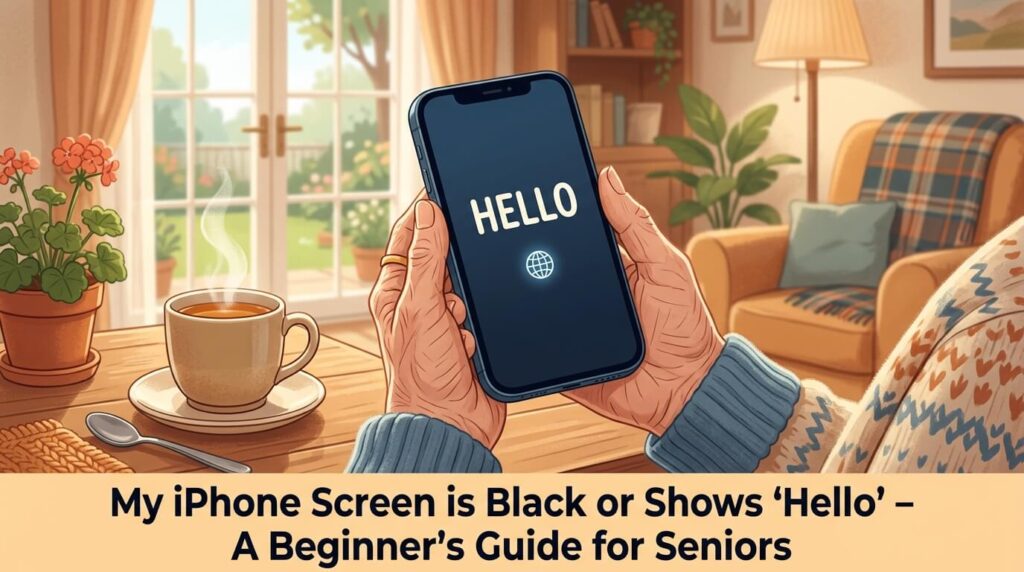
- Situation B: The screen is on and shows the word “Hello” in big letters, maybe with smaller words in other languages.
- Situation C: The screen is on, but it’s asking for a passcode (numbers) or showing a lock picture.
Once you know which situation matches your phone, you can click on the blue link below to jump straight to that part, or simply scroll down to find it.
If Your Screen is Completely Black (Situation A)
This can happen whether your iPhone is new or old. If the screen stays dark and nothing happens when you tap it, the phone is most likely turned off or the battery has run out. Don’t worry – your phone is not broken, and we can fix this right now.
What you need to do:
Hold your phone so the screen faces you. On most iPhones, look at the right-hand edge for a long, flat button (called the Side button).
*Note: If your phone is smaller or older, this button might be on the very top edge.*
Put your finger on that button and press it down firmly. Keep holding it. Do not let go too fast. Count slowly to five: “one… two… three… four… five…”
Keep your eyes on the dark screen. You should see a white apple shape (the Apple logo) appear right in the middle.
As soon as you see that apple, you can lift your finger off the button.
The phone needs a minute or two to wake up completely. Just let it sit and do its job. There is nothing else you need to touch.
🤔 What if nothing happens after 10 seconds?
Don’t panic – the battery might be completely empty.
- Find the charging wire and plug the small, flat metal end into the bottom of your phone. Plug the other end into the power adapter and then into a wall outlet.
- Leave the phone alone to charge for at least 15 minutes. You can go have a warm cup of tea and come back.
- After 15 minutes, try pressing and holding the power button again (follow Step 2 above).
If the screen still stays black after charging and pressing the button, there might be a different issue. But in most cases for everyday users, it’s just an empty battery. If you continue to have trouble, you can ask a family member to help or contact Apple Support, but please don’t worry – you haven’t done anything wrong.
Frequently Asked Questions (FAQ)
Q: I pressed the button, but a picture of a battery with a tiny red line came on. Is it broken?
A: Not at all! That is your phone’s way of saying, “I am too tired and hungry.” It means the battery is completely empty. Just plug in the charger, and that picture will disappear once the phone has enough energy to turn on.
Q: Can I break the phone if I hold the button down for too long?
A: No, you cannot. If you hold it too long, the phone will just try to turn on again. It is completely safe.
If Your Screen Shows “Hello” (Situation B)
If your phone screen is bright and you can see the word “Hello” in big letters, congratulations! Your phone is turned on and is waiting for you. This screen usually appears the very first time a phone is used, or after it has been completely cleaned and reset by a family member.
What you need to do:
Don’t worry if the word “Hello” keeps changing into other languages you don’t know. That is just the phone saying hello to the world! Here is how to open it:
- If your phone has a round button below the screen: Press that round button once. It will click gently, and the screen will change.
- If your phone does NOT have a round button: Look at the very bottom edge of the screen for a tiny horizontal line. Place one finger there and slowly slide it straight up toward the middle of the screen, like you are pushing a piece of paper away from you.
Now, a list of languages will appear. Scroll through the list, find English (or your preferred language), and tap it once. Next, it will ask for your country—tap your country name too.
Shortly after the language screen, the phone will ask you to connect to the internet (Wi-Fi). This is required to wake the phone up completely. If you don’t know your home Wi-Fi password, now is the perfect time to ask a family member or neighbor to type it in for you!
🤔 What if I swiped and nothing happened?
- Make sure your finger starts right at the very bottom black border of the screen, not in the middle.
- Use only one finger, and swipe straight up in a steady, smooth motion. Practice makes perfect!
Q: I see a lot of foreign words and a small person icon at the top. Did I break it?
A: Not at all! The phone is just cycling through different world languages. The small icon is for accessibility settings. You can completely ignore them and just swipe up or press the Home button to get to your language choice.
If Your Screen is Asking for a Passcode (Situation C)
Sometimes, the screen lights up but instead of “Hello”, you see the current time and a small lock picture at the top. This means the phone is already set up but is locked with a passcode—a secret number to keep your information safe.
What you need to do:
If you only see the big clock, the phone is waiting for you to wake it up. Swipe your finger up from the bottom edge (or press the round Home button once). This will bring up a grid of numbers from 0 to 9.
Tap each number of your passcode lightly with your fingertip, just like pressing a button on a calculator. The passcode is usually 4 or 6 numbers long. Common ones given to seniors are birth years (like 1960) or simple lines, but yours may be unique.
If the numbers shake and the screen clears, it means a wrong number was tapped. Don’t worry—take a breath and try again more slowly. The phone will not lock you out for making a simple mistake.
🔒 What if I completely forgot the passcode?
This happens to everyone! However, do not guess too many times. After 6 wrong tries, the phone will temporarily freeze to protect itself (first for 1 minute, then longer). If you cannot remember it:
- Ask the family member or friend who gifted or set up the phone for you. They usually write it down or remember it.
- If it is completely lost, the phone will need to be reset using a computer. This deletes the current data but allows you to use the phone as fresh.
You Did It! What’s Next?
If you’ve followed along, one of these should now be true:
- You saw the Apple logo and the phone is starting up (Situation A), or
- You opened the “Hello” screen and chose your language (Situation B), or
- You entered your passcode and are now looking at a screen full of little colorful squares (Situation C).
If you are looking at the screen with all the small pictures, congratulations! That is called the Home Screen, and it is the home base for everything you will do on your iPhone.
Remember, every tech expert was once a beginner. Take it one tap at a time, and feel free to explore our website whenever you have a question. We are here to make technology easy for you!