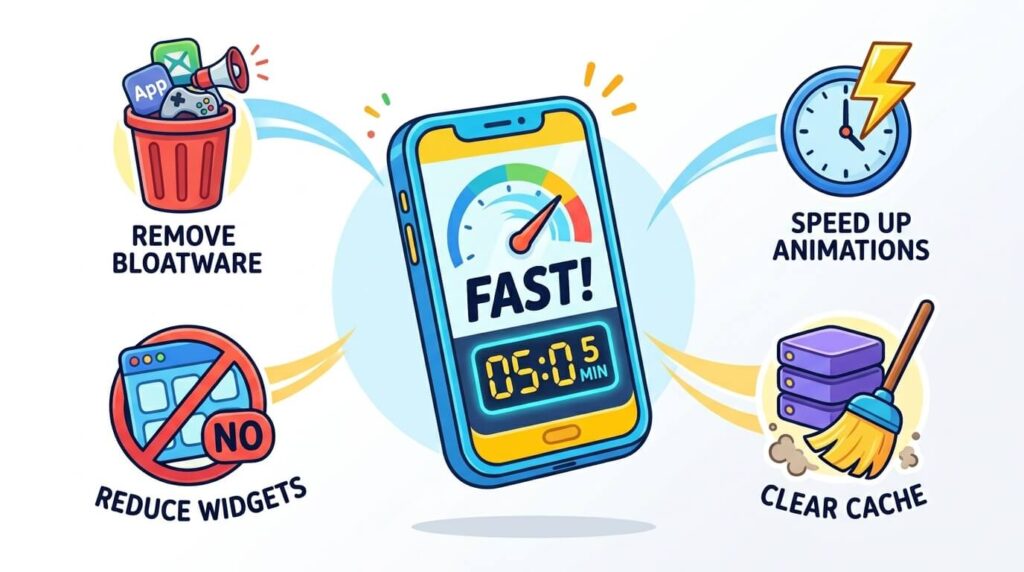
Your Android phone used to be lightning-fast. Now? It stutters. Apps take forever to open. Scrolling feels like wading through mud. Your first instinct might be to download a “phone cleaner” or “speed booster” app from the Play Store. Don’t. Most of those apps are either useless, filled with ads, or actively drain your battery in the background.
The good news? You don’t need a single app to fix this. Android has powerful built-in tools that can restore your phone’s speed in just five minutes. Here are six quick, actionable fixes that actually work—no downloads, no subscriptions, just pure Android optimisation.
| Step | Action | Time | Difficulty |
|---|---|---|---|
| ① | Clear app cache | 1 minute | ⭐ Easy |
| ② | Disable or uninstall bloatware | 1 minute | ⭐ Easy |
| ③ | Turn off unnecessary animations | 1 minute | ⭐⭐ Medium |
| ④ | Remove heavy widgets & live wallpapers | 30 seconds | ⭐ Easy |
| ⑤ | Restrict resource-hungry apps | 1 minute | ⭐⭐ Medium |
| ⑥ | Free up storage space | 1 minute | ⭐ Easy |
| Total | 6 fixes | ~5 minutes | All levels |
Why Your Android Slows Down (The Real Culprits)
Before we fix it, let’s understand the enemy. Your phone slows down for four main reasons:
- Cache buildup—apps store temporary files that clog your storage
- Bloatware—pre-installed apps you never use, running in the background
- Heavy animations—fancy visual effects that eat up processing power
- Full storage—when your storage is over 90% full, Android slows to a crawl
Let’s tackle each one, step by step.
Step 1: Clear the App Cache (The #1 Clog)
Every app on your phone saves temporary files—images, videos, login tokens, and browsing data. This is called cache. Over time, it can grow to gigabytes of useless junk that slows everything down.
📱 For Android 14 & 15 (Most phones in 2026)
Method A (Stock Android / Pixel):
- Open Settings → Storage (or Storage & USB)
- Tap Apps (or See all apps)
- Select an app you use frequently (like Chrome, Instagram, or YouTube)
- Tap Storage & cache
- Tap Clear cache (⚠️ NOT “Clear data”—that will delete your login info!)
Method B (Samsung One UI 6.0 & 7.0):
- Open Settings → Device Care → Storage
- Tap Apps
- Select an app
- Tap Storage → Clear cache
Method C (Xiaomi HyperOS / MIUI):
- Open Settings → Apps → Manage apps
- Select an app
- Tap Clear data → Clear cache (only clear cache, not all data)
💡 Pro tip: You don’t need to do this for every app. Focus on the ones you use daily—browsers, social media, and streaming apps. Cache typically stores “junk” that speeds up repeated visits but can quickly accumulate.
Step 2: Delete or Disable Bloatware
Your phone came with apps you’ve never opened. Maybe it’s the carrier’s “My Account” app, a random game, or a manufacturer’s duplicate of Google services. These apps waste storage, run background services, and consume RAM.
📱 For Android 14 & 15
- Open Settings → Apps (or Application Manager)
- Scroll through the list and find apps you never use
- Tap on the app
- If you see Uninstall—tap it (goodbye! 👋)
- If you only see Disable—tap that instead (this hides it and stops it from running, even if you can’t fully delete it)
Common bloatware to look for:
| Type | Examples |
|---|---|
| Carrier apps | T-Mobile, AT&T, Verizon, Smart, Cellcard, Metfone |
| Duplicate apps | Samsung Messages (if you use Google Messages), Samsung Internet (if you use Chrome) |
| Random games | Candy Crush, Asphalt, etc. (pre-installed) |
| Useless system apps | “Tips”, “Help”, “Member’s Club”, “My Account” |
⚠️ Warning: Don’t disable essential system apps like “Google Play Services” or “Android System” — this can break your phone!
Step 3: Turn Off Animations (Instant Speed Boost)
This is the single most powerful tweak on this list. Android uses fancy animations for transitions—like opening an app or switching screens. Disabling or reducing them makes your phone feel instantly 2x faster.
How to enable Developer Options (one-time setup):
- Open Settings → About Phone (or About Device)
- Find Build Number and tap it 7 times rapidly
- Enter your PIN if prompted
- You’ll see “You are now a developer!” 🎉
How to turn off animations (Android 14/15):
- Go back to Settings → System → Developer Options
- Scroll down to the Drawing section
- Find these three settings:
- Window animation scale
- Transition animation scale
- Animator duration scale
- Tap each one and change it to 0.5x or Off
What to choose:
| Setting | Effect | Best for |
|---|---|---|
| Off | No animations at all | Feels like a brand-new phone, instant response |
| 0.5x | Animations 50% faster | Still smooth, but noticeably faster |
⚠️ Note: On Xiaomi HyperOS, you may need to enable “Animations” toggle in Developer Options first before you can change the scale settings.
Step 4: Remove Heavy Widgets and Live Wallpapers
Widgets and live wallpapers look cool—but they’re constantly updating in the background. That weather widget? It’s pulling data every few minutes. That live wallpaper? It’s using GPU power 24/7.
How to remove widgets:
- Long-press on your home screen
- Tap Widgets (or the + icon)
- Drag unnecessary widgets to the “Remove” or trash icon at the top/bottom of the screen
How to change wallpaper:
- Open Settings → Wallpaper & style (or Display → Wallpaper)
- Choose a static image from your gallery
- Avoid “Live Wallpapers” or “Dynamic Wallpapers”
Which widgets to keep:
| Keep | Remove |
|---|---|
| Calendar (if you use it daily) | Weather (apps update faster anyway) |
| Music player (if you listen daily) | News feeds (just open the app) |
| Clock (basic digital) | Battery widgets (Android shows it in the status bar) |
Step 5: Check Resource-Hungry Apps
Some apps are just poorly optimized. They run background services, send constant notifications, and drain both battery and performance.
Method A: Check battery usage
- Open Settings → Battery → Battery usage (or Device Care → Battery → Battery usage on Samsung)
- Look at the list of apps and their battery percentages
- Tap on any app that seems unusually high (e.g., an app you barely use taking 15% battery)
- Tap Restrict background activity or Battery optimization
Method B: Check memory usage
- Open Settings → About Phone → Memory (or RAM)
- Check which apps are using the most memory
- For apps you don’t need running constantly, tap Force stop or uninstall them
🔥 Top culprits to watch:
| App Type | Why It’s Hungry | What To Do |
|---|---|---|
| Constantly syncs, tracks location | Force stop, or use the mobile site instead | |
| Chrome | Tabs stay active in background | Close unused tabs, restrict background activity |
| Games | Heavy graphics, background services | Uninstall if you don’t play them daily |
| Apps with “Fitness” or “Location” | GPS always running | Turn off location permissions for unused apps |
Step 6: Free Up Storage Space (The 90% Rule)
Here’s a little-known fact: when your phone’s storage is over 90% full, Android slows down dramatically. The system needs free space to run smoothly—for caching, swapping memory, and background processes.
How to check your storage (Android 14/15):
- Open Settings → Storage
- Look at the percentage used
- If it’s over 85-90%, it’s time to clean up
Quick ways to free up space:
| Action | How To | Time |
|---|---|---|
| Clear app cache | Step 1 above | 1 min |
| Delete old photos & videos | Backup to Google Photos first, then delete | 2 min |
| Uninstall unused apps | Settings → Apps → Uninstall | 1 min |
| Delete downloaded files | Files app → Downloads → Delete old PDFs, APKs | 1 min |
| Clear downloads folder | Files → Downloads → Select all → Delete | 30 sec |
💡 Google Photos offers free unlimited storage (at compressed quality) for most Android users—back up your photos, then safely delete them from your phone!
Summary (The TL;DR Version)
Here’s your 5-minute action plan:
| Step | Action | Time |
|---|---|---|
| ① | Clear app cache for your most-used apps | 1 minute |
| ② | Uninstall or disable bloatware | 1 minute |
| ③ | Turn off animations (Developer Options → 0.5x or Off) | 1 minute |
| ④ | Remove unnecessary widgets and live wallpapers | 30 seconds |
| ⑤ | Restrict resource-hungry apps | 1 minute |
| ⑥ | Free up storage (aim for under 85% full) | 1 minute |
| Total | ~5 minutes |
Try these steps right now. You’ll be amazed at how much faster your phone feels—without a single app download.
Frequently Asked Questions
Do I need a “phone cleaner” app?
No. Most are scams or ad-filled junk. Android’s built-in tools (what we just used) are more effective and don’t drain your battery. If you see “Clean Master” or “Boost Speed” ads—ignore them!
Will turning off animations break anything?
No. It just makes your phone faster. Some people prefer 0.5x over “Off” because “Off” can feel a little choppy—but both are completely safe. You can always change it back.
How often should I do this?
Every 2-3 months is a good rule of thumb. Or whenever you notice your phone starting to lag.
What if my phone is still slow after this?
If your phone is over 4-5 years old, the hardware might simply be struggling with modern apps. Consider:
- A factory reset (backup first! — photos, contacts, messages, and important files)
- Upgrading to a refurbished phone (cheaper and better for the environment)
- Checking if your phone has Android Go (lighter version for low-end devices)
Does clearing cache delete my app data?
No! ✅ “Clear cache” only removes temporary files. ❌ “Clear data” is the one that deletes logins, settings, and saved files — avoid that unless you want to reset an app completely.
I can’t find Developer Options on my phone!
Not all phones show it by default. Follow Step 3 carefully: go to Settings → About Phone → Build Number and tap it 7 times. If that doesn’t work, search your settings for “Build Number” or “Software Information”.
My Samsung phone has different menu names!
Samsung uses “Device Care” instead of “Storage” in some places. Here’s a quick guide:
| Stock Android | Samsung One UI |
|---|---|
| Settings → Storage | Settings → Device Care → Storage |
| Settings → Apps | Settings → Apps |
| Settings → Battery | Settings → Device Care → Battery |
Did these tips help? Share this guide with a friend who’s complaining about their slow phone—they’ll thank you! And don’t forget to check out our other how-to guides for more practical tech tips.